

How to turn screen recordings into polished training videos
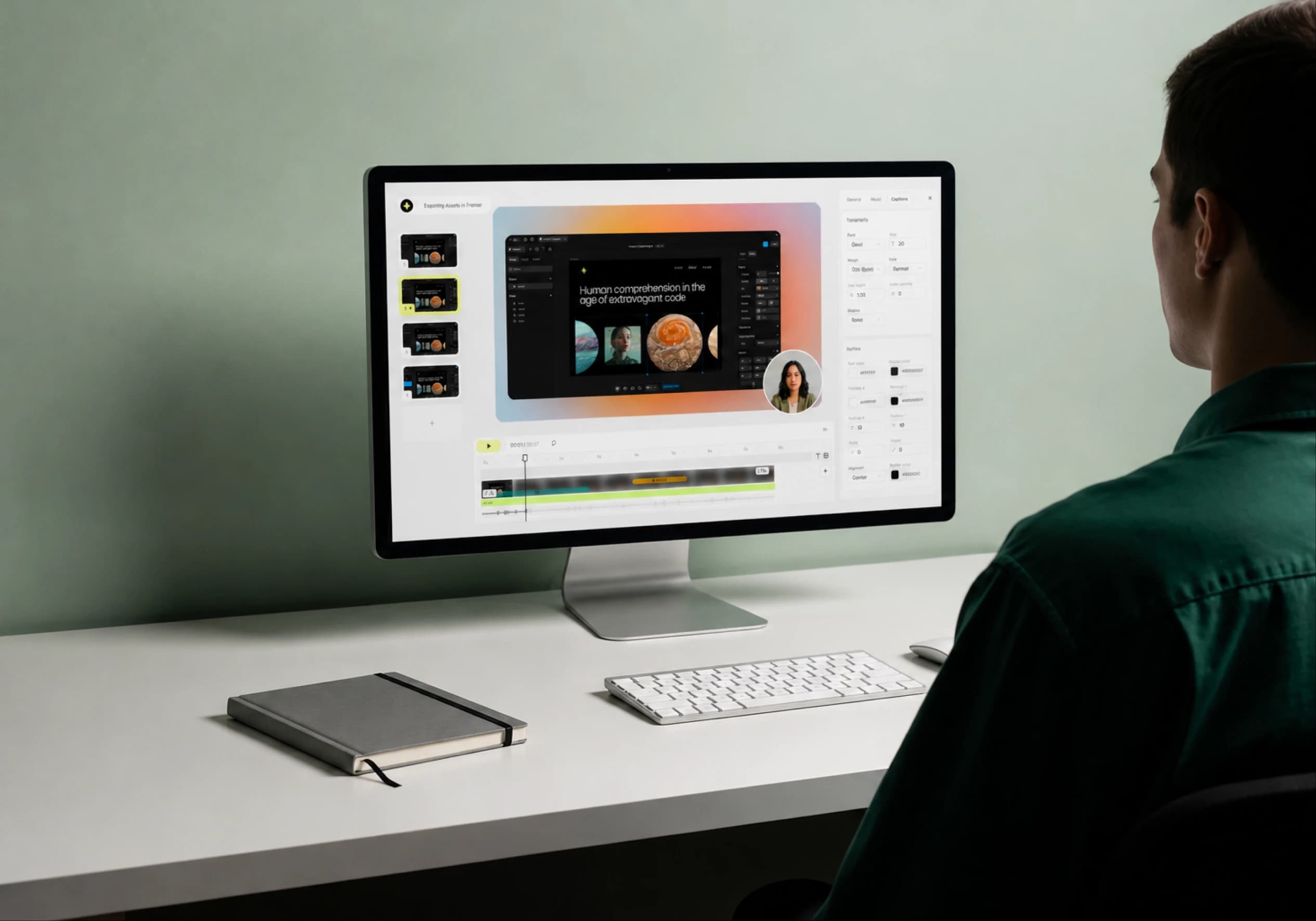
Almost every team already has the raw material for great training videos sitting in a folder somewhere: screen recordings. Someone captured how to configure the tool, onboard a client, or run the month-end process, and it's a shaky, 14-minute clip full of “um, let me find that” moments. Useful, but nobody wants to watch it, and it's certainly not something you'd put in a help center.
The gap between that raw capture and a polished training video used to be hours of editing. It isn't anymore. Here's how to close it.
Start with a rough recording, on purpose
The instinct is to script and re-record until the capture is “clean.” Don't. A rough walkthrough, with all its pauses and detours, is the ideal input. The whole point of a modern workflow is that the cleanup happens after the recording, automatically, so the recording itself only needs to be complete and correct, not performed.
Practically: open the feature, do the thing end to end, and narrate what you're doing as you go, or don't narrate at all and add a clean script later. Both work.
The four things that turn a capture into a video
Auto zoom and pacing
A full-screen recording asks the viewer to figure out where to look. Good training videos zoom into the exact control being discussed and cut the dead air between steps. With Super.degree, zooms, speed-ups, pauses, and trims are generated automatically from the recording, and you can fine-tune every one of them. That single change is what makes a capture feel produced.
Narration in a consistent voice
Live narration is inconsistent, your energy, your background noise, and your phrasing change from take to take. Generating narration from a script in your own cloned voice gives every training video the same clear, steady delivery. And because it's driven by text, correcting a step means editing a sentence, not re-recording a paragraph.
Captions that survive muted playback
Training content is often watched on mute, at a desk in an open office or on a phone. Styled, readable captions aren't decoration; they're how half your audience actually consumes the video. Auto-generated captions you can style to match your brand cover that audience without extra work.
A written guide alongside the video
This is the part teams forget. When a user hits a wall, they first go into search mode, scanning text to find the one step they're stuck on, before they shift into consumption mode and watch it done. A great training asset serves both: a structured written guide for indexing and skimming, and a video for visual proof. Generating both from the same recording means they never drift out of sync.
Keep a human in the loop
Automation gets you 90% of the way in minutes, but training content has to be correct. A wrong step in a help article is worse than no article at all. The right workflow generates the polished draft automatically and then puts a person in front of it to validate accuracy before it goes live. You spend your time verifying, not editing timelines.
Make it repeatable, not heroic
The reason training libraries go stale is that each video is a heroic effort. Break that by standardizing: save your intro, outro, captions, and background as a template so every new video starts on brand, and lean on the fact that regenerating from an updated recording is cheap. When the product changes, you update the screen capture and re-render, rather than rebuilding from scratch.
Do this and your training library stops being a graveyard of outdated clips and starts keeping pace with the product itself. If you'd rather not appear on camera at all, here's how to make videos without recording yourself. When you're ready to reach a global audience, see how to translate your videos into 100+ languages.